


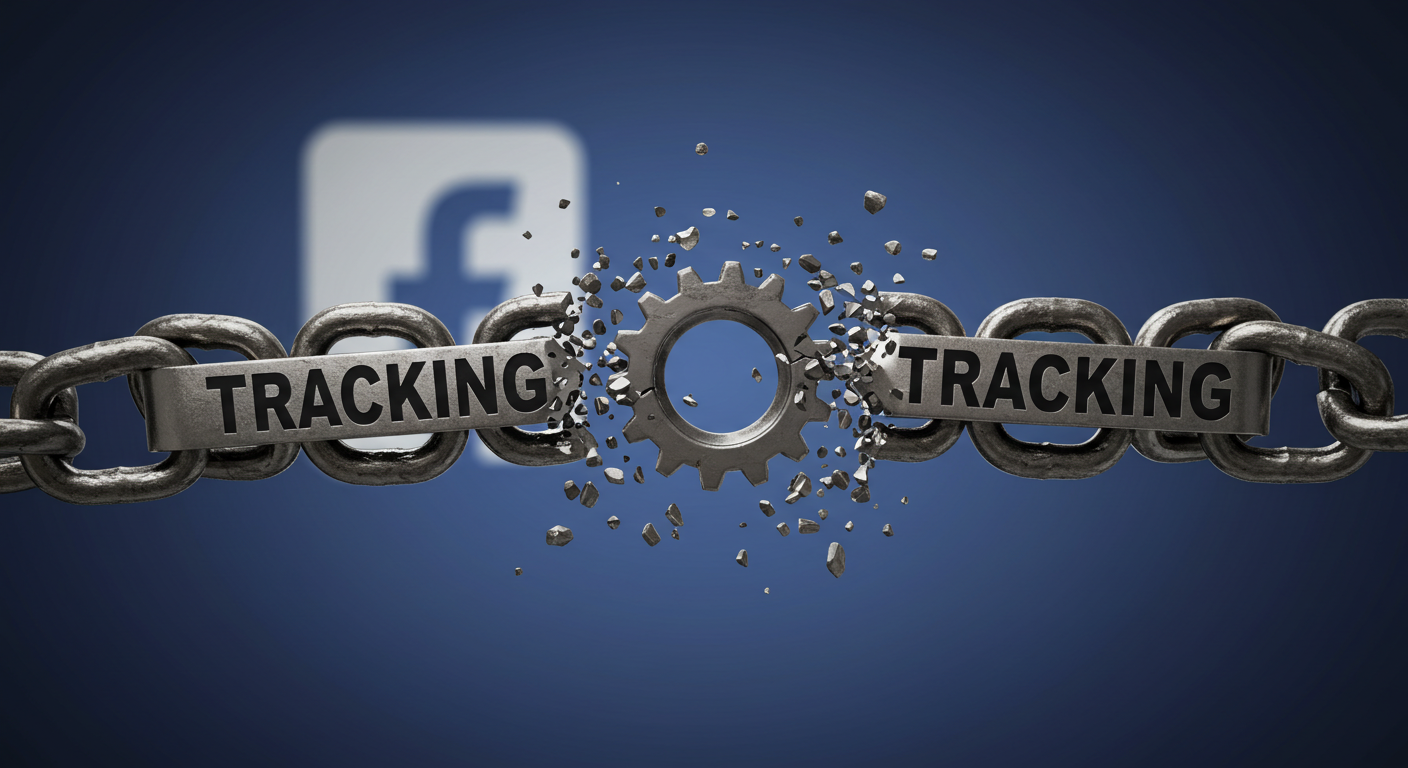
Facebook has built its empire on data. Every ad you see, every suggested product that follows you around the web, is powered by the vast pool of information the platform collects—not just when you scroll your feed, but also when you browse entirely unrelated sites. What many users don’t realize is how deep this tracking runs. That’s why learning the simple settings to stop Facebook tracking has become essential for anyone serious about digital privacy.
The reality is quite simple. Facebook’s business model depends on ad targeting, and that requires gathering as much behavioral data as possible. Every interaction feeds into a detailed profile that advertisers use to follow you across the web. It’s invasive, and for many, unsettling.
You don’t have to abandon the platform or delete your account to fight back. By adjusting a handful of overlooked privacy settings—hidden in menus most people never check—you can cut down on Facebook’s reach and reclaim a measure of control.
This guide will show you why Facebook tracks you, how to find the right switches to flip, and what additional tools can strengthen your defenses.
See Also: Everyday Apps That Leak Your Data and How to Stay Safe
Why Facebook Tracks You Across the Web
At its core, Facebook isn’t just a social network. It is one of the world’s largest and most powerful advertising platforms. To fuel that engine, the company collects data not only from your activity on Facebook and Instagram but also from what you do across the broader internet. Every product you browse, article you read, or service you consider becomes another signal added to your profile.
The most visible mechanism behind this is Off-Facebook Activity, a feature that compiles interactions from thousands of partner websites and apps. Whenever you use a “Login with Facebook” button, click a “Like” widget, or visit a site running a Facebook tracking pixel, details of that interaction flow back to the platform. Combined with your on-platform behavior, this data paints a remarkably complete picture of your interests, habits, and potential purchases.
From Facebook’s perspective, the value is clear— the richer the profile, the more advertisers will pay to reach you with precision-targeted campaigns. But from a user’s perspective, the trade-off is murkier. Most people have little idea how extensive this tracking is, let alone how to limit it.
Understanding why Facebook tracks you is the first step. The second is learning the simple settings that stop Facebook tracking, giving you a practical way to reduce how much of your life is funneled into its ad ecosystem.
See Also: How Hackers Think and How to Stay Ahead of Hacking Tactics
Simple Settings to Stop Facebook Tracking
1. Opt Out of Facebook’s Off-Site Activity
One of the most powerful ways to limit tracking is buried inside Facebook’s privacy controls. It is the Off-Facebook Activity tool. This setting reveals the data Facebook collects from partner websites and apps—essentially a running log of your digital footprint beyond the platform itself. For most people, the sheer volume of activity listed here can be eye-opening.
When you open the Off-Facebook Activity dashboard (found in Settings & Privacy > Your Facebook Information > Off-Facebook Activity), you’ll see a summary of the businesses and services that have shared data with Facebook. Each entry represents an interaction—whether it’s adding a product to a cart, booking a flight, or browsing a news article.
Fortunately, you can cut off this stream of data. By selecting “Clear History,” you wipe the record of what’s been collected so far. More importantly, toggling “Manage Future Activity” allows you to stop Facebook from linking future off-site events to your account. It doesn’t prevent websites from sending data to Facebook altogether, but it severs the tie between that activity and your personal profile.
For users concerned about targeted advertising or the sheer reach of Facebook’s surveillance, this step is essential. It’s the single most effective setting for reducing cross-platform tracking without giving up your account entirely.
2. Disable Facebook Ad Personalization
Even if you limit Facebook’s off-site activity, the platform still uses the information it gathers inside the app to tailor ads. That’s where Ad Personalization settings come in. By default, Facebook assumes you want ads based on your interests, activity, and interactions. For advertisers, this is gold. For users, it’s yet another layer of tracking—and one you can actually dial back.
Head to Settings & Privacy > Settings > Ad Preferences. Here, you’ll find a breakdown of how Facebook categorizes you: the topics it thinks you’re interested in, the advertisers who’ve uploaded your information, and whether your profile can be used for ads on other apps.
Start with the “Ad Settings” section. You’ll see toggles that control whether ads are personalized based on:
- Data from partners
- Your activity on Facebook’s apps and websites
- Ads shown on other platforms
Switching these off won’t eliminate ads altogether. You’ll still see them but the ads will be less hyper-targeted. Instead of feeling like Facebook is reading your mind, the experience shifts toward more generic promotions.
This change matters for privacy in two ways. First, it reduces the behavioral signals advertisers can exploit. Second, it makes your online habits less transparent to the platform. While Facebook still collects data, the direct link between your actions and the ads you’re served becomes weaker.
3. Manage Cookie and Browser Settings
Even if you’ve adjusted Facebook’s in-app privacy tools, the company still learns a lot from your browsing habits through cookies and embedded trackers. That’s why one of the most overlooked yet effective simple settings to stop Facebook tracking lies not inside the app but in your web browser. By controlling how cookies and trackers behave, you can limit the amount of data flowing back to Facebook in the first place.
Most modern browsers now include built-in anti-tracking features. In Chrome, you can disable third-party cookies under Privacy and Security > Cookies and Other Site Data. Safari enables cross-site tracking prevention by default, while Firefox offers Enhanced Tracking Protection, which blocks known trackers automatically. For a stronger approach, browsers like Brave and DuckDuckGo prioritize privacy out of the box, blocking Facebook pixels and trackers at the network level.
Beyond native browser controls, consider adding extensions like Privacy Badger or uBlock Origin. These tools learn over time which scripts are following you and shut them down without breaking your browsing experience. The effect is twofold: Facebook has less visibility into your activity, and pages often load faster without all the extra tracking requests.
4. Adjust App Permissions
For many users, the biggest privacy leaks don’t happen on desktop—they happen on mobile. The Facebook app, like most social platforms, requests a wide range of permissions when installed. Location, microphone, contacts, even camera access can all be granted by default. Left unchecked, these permissions create another layer of exposure, feeding data that advertisers can use to profile you. That’s why reviewing app-level controls is one of the most practical simple settings to stop Facebook tracking on your phone.
On iOS, navigate to Settings > Privacy & Security and review which apps—including Facebook—have access to sensitive data like location, photos, and Bluetooth. For location, set Facebook to While Using the App or disable it entirely. On Android, head to Settings > Apps > Facebook > Permissions to toggle off anything unnecessary. Both platforms also let you manage background app refresh, preventing Facebook from running quietly in the background and collecting information.
Beyond permissions, check whether Facebook has access to your phone’s advertising ID. Resetting this identifier or limiting ad tracking in your system settings helps reduce the precision of cross-app profiling.
Adjusting app permissions doesn’t break Facebook’s functionality—you’ll still be able to post, message, and scroll. What changes is the depth of information the app can pull from your device. It’s a straightforward step, but it closes one of the most common back doors Facebook uses to keep tabs on your life beyond the feed.
See Also: How Hackers Exploit LinkedIn Profiles and How You Can Stay safe
5. Use Third-Party Privacy Tools
Even after tightening Facebook’s built-in settings and adjusting your browser and phone permissions, the platform still finds ways to gather data. That’s where third-party privacy tools come in. Think of them as an extra layer of armor—technology designed to block trackers before they ever reach your account. Combined with the other simple settings to stop Facebook tracking, these tools make it much harder for the company to build a complete picture of your online life.
One of the easiest additions is a tracker-blocking extension. Tools like Privacy Badger, Ghostery, and uBlock Origin scan websites for hidden scripts—like Facebook’s tracking pixel—and stop them from firing. The result is fewer data handshakes with Facebook and, as a bonus, faster page loads.
For mobile users, DuckDuckGo’s App Tracking Protection works quietly in the background to block requests from apps trying to send data to third parties, Facebook included. Pairing this with a VPN can also help obscure your browsing activity, especially on public Wi-Fi networks where tracking is even more aggressive.
Another option is to use alternative browsers such as Brave, which blocks trackers and ads by default. Unlike Chrome or Safari, which require extra steps, privacy-first browsers are built to minimize surveillance from the start.
See Also: How to be in control of your data on Facebook
How Effective Are These Settings?
It’s important to be clear about what these privacy adjustments can, and cannot do. Enabling these simple settings to stop Facebook tracking will significantly reduce the amount of personal data tied directly to your account. Turning off Off-Facebook Activity, disabling ad personalization, tightening browser controls, and limiting app permissions all make it harder for Facebook to follow you across the web.
That said, no switch flips you completely invisible. Facebook still collects data within its own apps, and partner websites may continue sending anonymized information even if it’s not directly linked to your profile. In practice, this means you’ll still see ads—but they’ll be broader, less eerily specific, and based on fewer behavioral signals.
The bigger win is psychological and practical. Instead of passively being tracked by default, you’ve actively chosen what information Facebook can access and when. That shift not only reduces your exposure but also aligns your online habits with your comfort level.
Additional Tips & Best Practices
While Facebook’s own controls and browser tweaks go a long way, a few extra habits can make your privacy strategy even stronger. These aren’t complicated hacks—just simple practices that complement the simple settings to stop Facebook tracking and help you stay ahead of constant changes in the digital landscape.
Start with your choice of browser and search engine. Privacy-first options like Brave or DuckDuckGo automatically block third-party trackers, including Facebook’s, without needing extra extensions. If you’re tied to Chrome or Safari, make sure you regularly clear cookies and browsing data to reset the identifiers advertisers rely on.
Next, review your login habits. Many websites still offer a “Sign in with Facebook” shortcut. It’s convenient, but it gives Facebook another pipeline into your activity. Instead, create separate logins with unique passwords stored in a password manager.
It’s also smart to audit your Facebook settings regularly. The platform often introduces new features or simply updates old ones that shift how data is shared. A quick privacy check every few months ensures you stay in control.
Finally, remember that privacy is cumulative. Each adjustment—whether in Facebook, your browser, or your apps—adds a layer of defense. When combined, these layers create a practical, sustainable approach to limiting Facebook’s data reach without abandoning the platform entirely.
Frequently Asked Questions (FAQ)
Q1: How do I stop Facebook from tracking me completely?
You can’t stop Facebook from collecting all data, but you can minimize it. Use the Off-Facebook Activity tool, disable ad personalization, adjust browser and app permissions, and add tracker-blocking extensions for stronger protection.
Q2: Does deleting Facebook stop tracking?
Deleting your account prevents Facebook from tying data directly to you, but the company may still receive anonymized information from partner websites. To cut ties completely, delete both your Facebook and Instagram accounts and avoid services tied to Meta’s ecosystem.
Q3: Can I block Facebook tracking without deleting my account?
Yes. Adjusting the simple settings to stop Facebook tracking—like Off-Facebook Activity and Ad Preferences—significantly reduces how much data is linked to your profile while keeping your account active.
Q4: What happens if I turn off Off-Facebook Activity?
Facebook will no longer link browsing data from other sites and apps to your account. You’ll still see ads, but they’ll be less targeted and less reflective of your activity outside Facebook.
Q5: Is using a VPN enough to stop Facebook tracking?
A VPN hides your IP address and location, which adds privacy, but it doesn’t block Facebook’s own trackers or cookies. For best results, combine a VPN with in-app settings and browser controls.
Q6: Can Facebook track me if I log out of my account?
Yes. Facebook can still track users through cookies, plugins, and pixels on partner websites—even if you’re logged out. Logging out reduces activity-based tracking but doesn’t eliminate it.
Q7: Does using Facebook in private browsing or incognito mode stop tracking?
No. Incognito mode only prevents your browser from saving history; it doesn’t block Facebook’s trackers. To reduce tracking, combine private browsing with cookie-blocking and off-Facebook settings.
Q8: What’s the quickest setting to stop Facebook tracking today?
Answer: Go to Settings > Your Facebook Information > Off-Facebook Activity and turn off “Future Activity.” This one step instantly severs the link between your browsing and your Facebook profile.

2 Comments
What a brilliant article! The research and thought you’ve put into this is evident.
I’m bookmarking this page. The tips you’ve shared are priceless.